
A Better Way to Work · Episode 01 · Envizion IT
Welcome to A Better Way to Work, a new series from Envizion IT for West Michigan organizations. Each episode shares a practical way to make the workday easier with tools your team may already have.
Technology should make your workday easier, not more complicated. That's the idea behind A Better Way to Work.
We’re starting with email. When a customer asks for an updated estimate or a teammate sends a document to review, give the follow-up a place on your task list. A good task tells you what to do the next time you see it, even if you’ve moved on to another project.
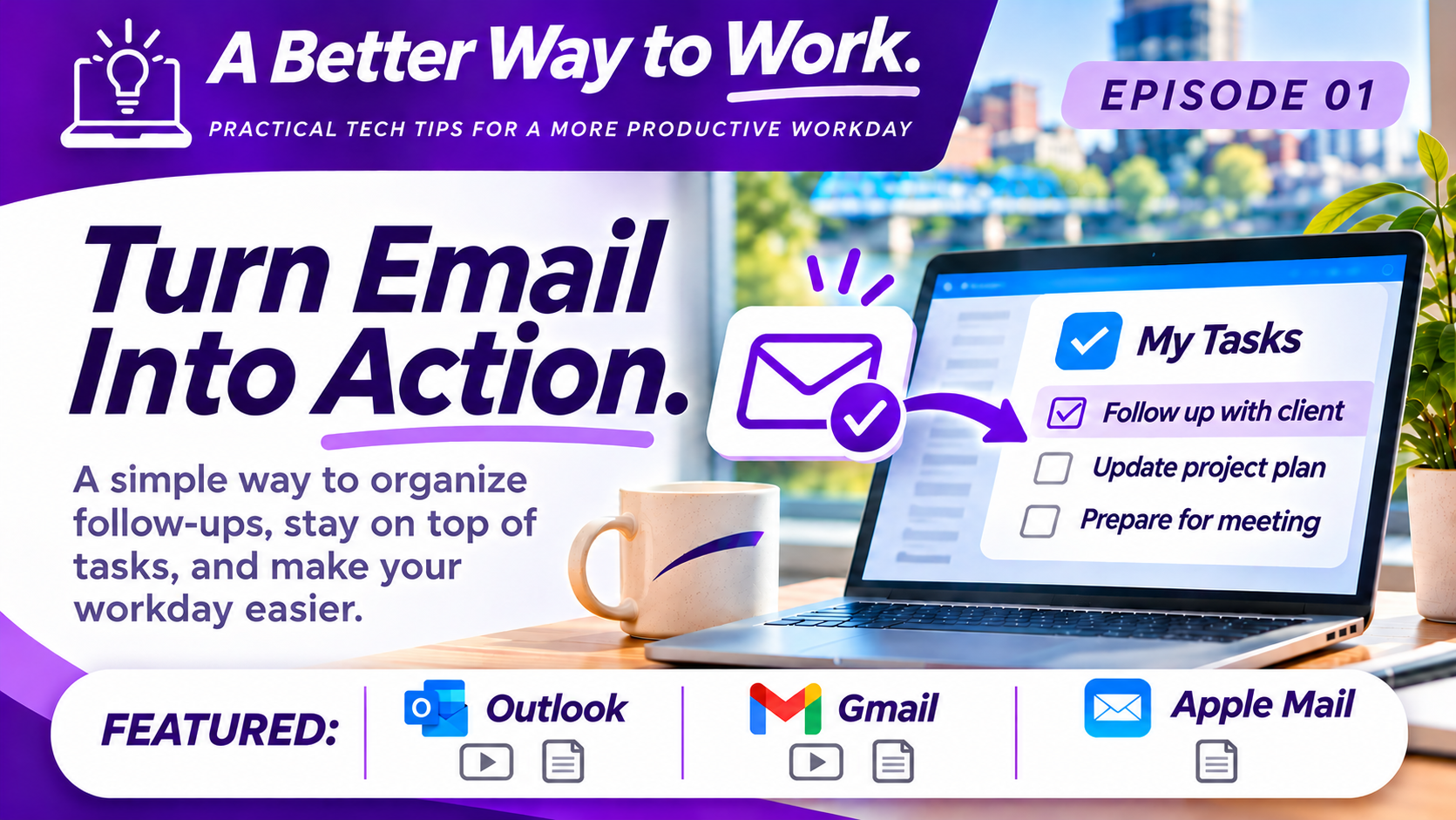
Watch Episode 01, Turn Email Into Action, on YouTube.
Outlook and Microsoft To Do
You can follow up in Microsoft To Do if your primary mailbox is hosted by Microsoft and supports Flagged email. For work or school, you’ll need an eligible Microsoft 365 account with Exchange Online. Flags from shared mailboxes or shared folders don’t sync to your Flagged email list.
- In Outlook, find the message that needs follow-up and select its flag.
- Open Microsoft To Do with the same supported account you use in Outlook and select Flagged email. The list may already be on. If you don’t see it, choose Show list if prompted, or look for Flagged email under Connected apps in To Do settings and turn it on if available.
- Open the flagged item. Add a due date if there’s a real deadline. Use the original message when you need the thread for context.
If your mailbox doesn’t offer Flagged email, create a task manually if you can access To Do. Give it a clear action and add just enough context to find the message again.
Gmail and Google Tasks
- On a computer, open the message in Gmail.
- Select Add to Tasks in the message toolbar. If you don’t see it, choose More → Add to Tasks.
- In Google Tasks, give the new task a specific action and add a due date if needed. Use the linked email when you need to return to the conversation.
If you use Gmail for work or school, your Google Workspace administrator controls access to Tasks.
Apple Mail and Reminders
If you use Apple Mail on a Mac, here’s a written companion tip. Create the reminder yourself so you can use the same routine with whichever account you read in Apple Mail.
- Open the email and decide what you need to do next.
- Open Reminders, choose a list you check regularly, and create a new reminder. Give it an action-based title, such as “Review the revised estimate.”
- Add the sender or subject in the notes if it will help you find the message. Set a date or time if you want a prompt to follow up.
The Mail message and the reminder are separate items in this workflow. Return to Mail for the thread and mark the reminder complete in Reminders when you’ve finished the action.
Give the task a name you can act on
A subject like “Revised estimate” gives you a topic. “Send the revised estimate to Jordan by Friday” gives you a next step. Start with a verb, add enough context to recognize the work, and use dates for follow-ups that need them. Then check your task list at a time you can make a habit of, such as the start of your workday.
Try it with one email you already know needs a follow-up.
Small tech tips. Better workdays.